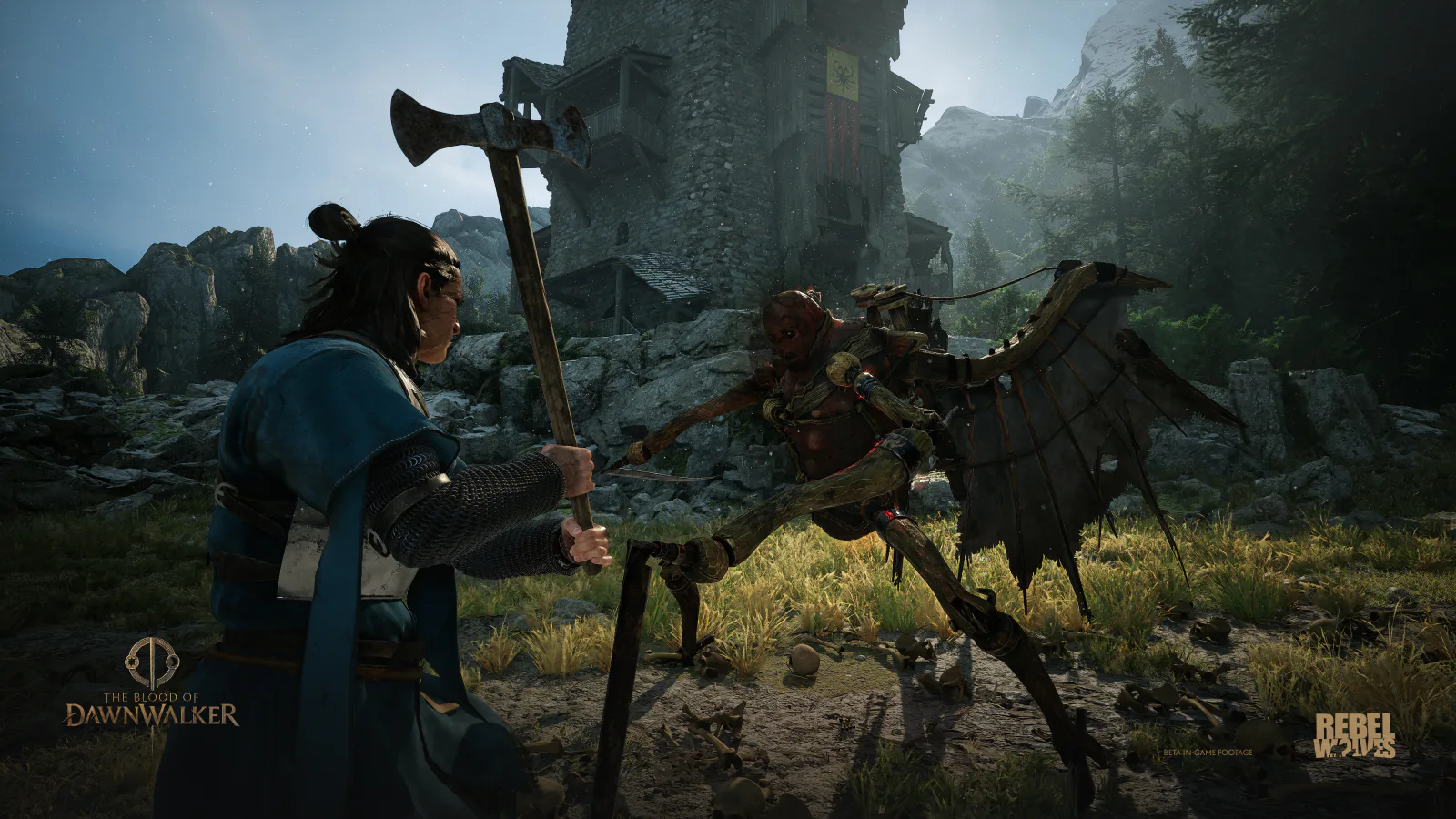
PC requirements and how to use this guide
Hardware requirements checked on September 5, 2026 against the game's official Steam listing, linked under Sources. The minimum and recommended lists below are the published requirements. The tuning steps that follow are editorial suggestions for testing your own PC.
Testing scope: this guide contains no original PC or Steam Deck benchmark measurements. Performance and battery life depend on your setup. Record your game version, graphics driver, hardware, resolution, and preset when comparing results; a result from one setup may not carry over to another.
Published minimum and recommended PC requirements
Minimum: Intel Core i5-11400F or AMD Ryzen 7 2700X; 16 GB RAM; NVIDIA GTX 1060 or Radeon RX 580. The listing specifies 6 GB VRAM.
Recommended: Intel Core i7-11700K or AMD Ryzen 7 5700X; 16 GB RAM; NVIDIA RTX 4060, Radeon RX 7600 XT, or Intel Arc B580. The listing specifies 8 GB VRAM.
Both tiers list a 64-bit processor and operating system, Windows 10, DirectX 12, and 60 GB of available space on an SSD. Available storage is a requirement to check before installation, not a measurement of the final installed size after every patch.
These Steam requirement lists do not state a resolution, graphics preset, or FPS target. They should not be read as a guarantee of 1440p at 60 FPS or a 4K recommendation. Check the current listing before buying hardware, since the publisher may update it.
Find a workable graphics preset on your PC
Start with the game's default settings and note the selected resolution and preset. Choose a repeatable save and a short route through exploration and combat. Use the same route for each comparison, keeping your power mode and background applications consistent.
If performance is uncomfortable, try the next lower preset at the same resolution, then repeat the route. If that helps, restore individual options you care about one at a time. Keep a change only when you prefer its balance of motion, responsiveness, and image quality.
Treat the options actually present in your installed build as the reference. Compare available shadow, lighting, effects, or texture settings individually rather than assuming every option is equally expensive. Inspect moving foliage, distant detail, and dark scenes as well as the FPS counter; a faster setting can still look worse to you.
If you use a frame cap, choose a target your machine can sustain through demanding parts of your test. Repeat the check in a different area before settling on a profile. One quiet scene does not establish a stable result for the whole game.
Compare upscaling and frame generation separately
If your build and GPU expose an upscaling option, compare its quality modes at a fixed output resolution. Keep frame generation off for this first comparison so you can judge the underlying rendering performance and image quality without changing several things at once.
If frame generation is available, test it separately afterward. Compare control response during movement and combat, plus visible artifacts, rather than choosing solely by the displayed FPS. This guide does not certify a particular DLSS or FSR version, or claim a universal performance gain from either feature.
What to check before playing on Steam Deck
Steam Deck compatibility and performance remain unverified in this guide. The Windows hardware requirements above do not establish SteamOS compatibility. Before buying specifically for Deck, review the current compatibility information on Steam and any publisher guidance for your installed version.
A recommended handheld profile would need a tested preset, power limit, sustained FPS result, and battery measurement. When comparing reports, look for the Deck model, SteamOS and game versions, resolution, settings, power limit, and test scene. A battery estimate also needs the display brightness and a stated measurement method.